> ## Documentation Index
> Fetch the complete documentation index at: https://docs.mcp-b.ai/llms.txt
> Use this file to discover all available pages before exploring further.
# Use Chrome DevTools MCP
> Set up chrome-devtools-mcp to let AI agents control Chrome, discover website tools, and build WebMCP tools through an AI-driven development loop.
This guide shows you how to use the upstream `chrome-devtools-mcp` package to connect desktop AI agents to a live Chrome browser. The server gives your agent browser automation tools plus the ability to discover and call WebMCP tools registered on any page.
The former `@mcp-b/chrome-devtools-mcp` fork is retired. Use `chrome-devtools-mcp@latest` in new MCP client configs.
## Install the MCP server
Add the server to your MCP client configuration:
```json "Claude Desktop / Cursor / Windsurf" theme={null}
{
"mcpServers": {
"chrome-devtools": {
"command": "npx",
"args": ["-y", "chrome-devtools-mcp@latest"]
}
}
}
```
```bash "Claude Code" theme={null}
claude mcp add chrome-devtools npx chrome-devtools-mcp@latest
```
```bash "VS Code CLI" theme={null}
code --add-mcp '{"name":"chrome-devtools-mcp","command":"npx","args":["-y","chrome-devtools-mcp@latest"],"env":{}}'
```
```bash "Gemini CLI" theme={null}
gemini mcp add chrome-devtools npx chrome-devtools-mcp@latest
```
The server launches Chrome automatically when the agent first uses a browser tool. Connecting to the MCP server alone does not start the browser.
## Test the connection
Enter this prompt in your MCP client:
```
Navigate to https://webmcp.sh and take a screenshot
```
Your agent should open Chrome, navigate to the page, and return a screenshot. This confirms the browser connection works before you start discovering tools.
## Discover WebMCP tools on a page
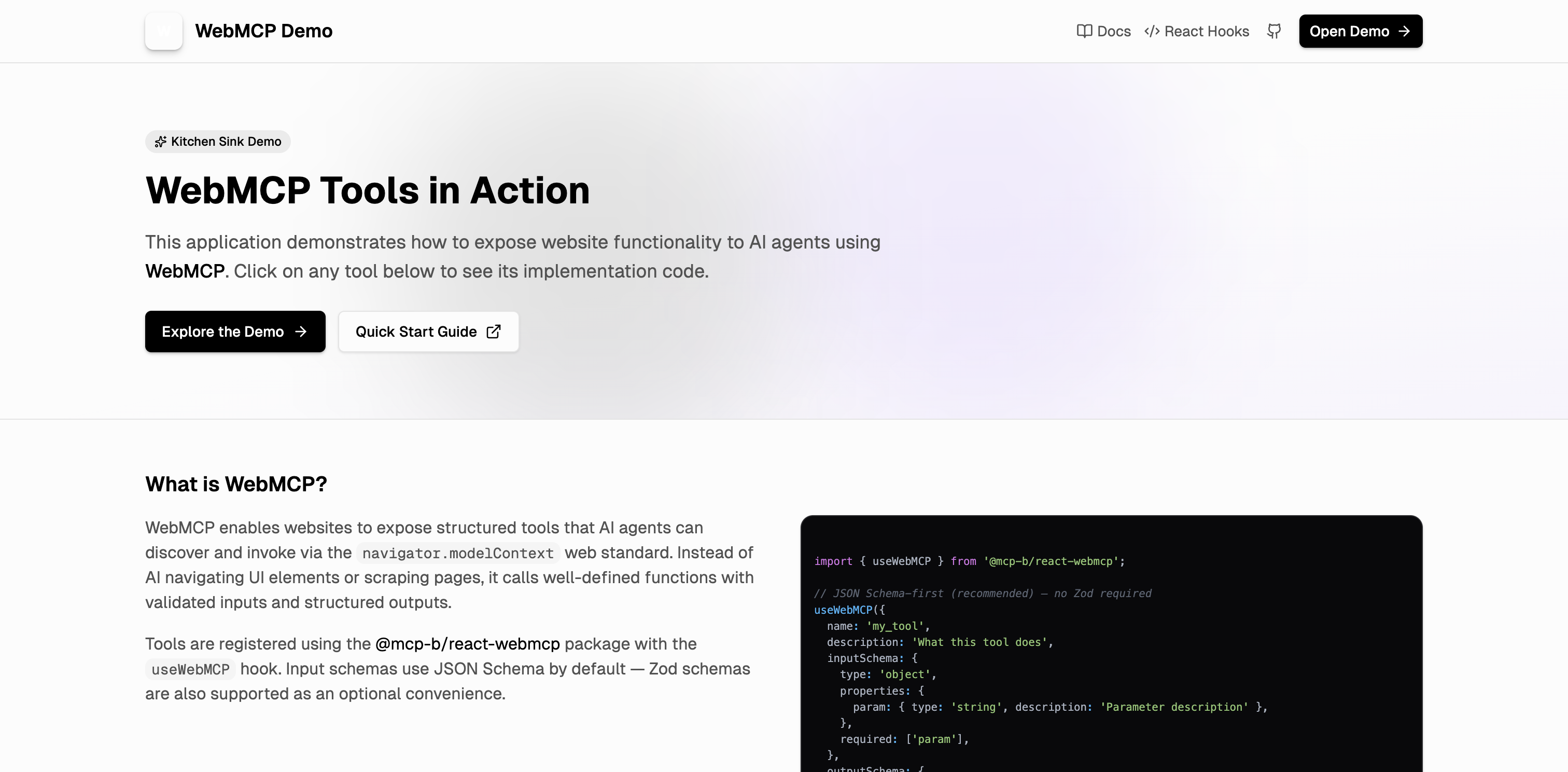
When a webpage has `@mcp-b/global` installed, the server detects its tools through the Chrome DevTools Protocol. Ask your agent:
```
Navigate to https://webmcp.sh and list the available tools
```
The agent uses `list_webmcp_tools` to discover tools, then registers them as first-class MCP tools with prefixed names like `webmcp_webmcp_sh_page0_tool_name`. You can call them directly.
 Try calling a discovered tool directly:
```
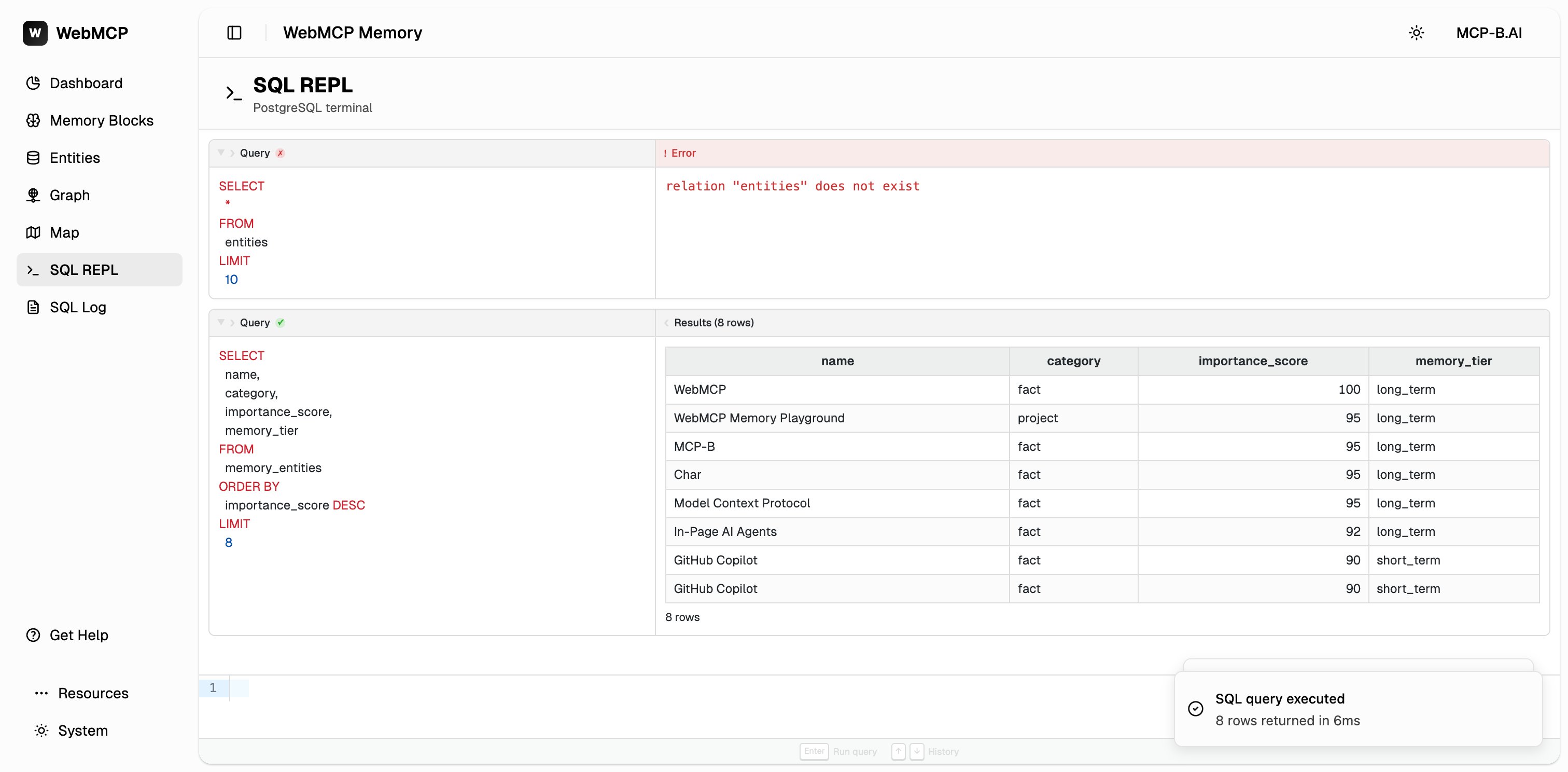
Navigate to the SQL REPL page on webmcp.sh and run: SELECT name, category, importance_score FROM memory_entities ORDER BY importance_score DESC LIMIT 5
```
The agent calls the `sql_query` tool and returns structured query results from the in-browser database.
Try calling a discovered tool directly:
```
Navigate to the SQL REPL page on webmcp.sh and run: SELECT name, category, importance_score FROM memory_entities ORDER BY importance_score DESC LIMIT 5
```
The agent calls the `sql_query` tool and returns structured query results from the in-browser database.
 `list_webmcp_tools` is diff-aware. The first call returns the full tool list. Subsequent calls
return only added or removed tools. Pass `full: true` to force the complete list.
### Client compatibility for dynamic tool updates
| Client | Dynamic updates | Notes |
| -------------- | --------------- | ---------------------------------------- |
| Claude Code | Yes | Full `tools/list_changed` support |
| GitHub Copilot | Yes | Supports list changed notifications |
| Gemini CLI | Yes | Recently added support |
| Cursor | No | Use `list_webmcp_tools` to poll manually |
| Cline | Partial | May need manual polling |
## Use the AI-driven development workflow
The most powerful use case is building WebMCP tools with your AI agent in a tight feedback loop. Clone the [Chrome DevTools Quickstart](https://github.com/WebMCP-org/chrome-devtools-quickstart) for a minimal project with `@mcp-b/global` pre-installed, or use your own app.
Claude Code is the best client for this workflow. It can write tool code in your project AND test
it via chrome-devtools-mcp in the same session, without switching windows.
```
Create a WebMCP tool called "search_products" that searches our product catalog
```
```typescript theme={null}
import '@mcp-b/global';
document.modelContext.registerTool({
name: 'search_products',
description: 'Search for products by name or category',
inputSchema: {
type: 'object',
properties: {
query: { type: 'string' },
category: { type: 'string' }
},
required: ['query']
},
async execute({ query, category }) {
const results = await searchProducts(query, category);
return {
content: [{ type: 'text', text: JSON.stringify(results) }]
};
}
});
```
```
Navigate to http://localhost:3000 and list the available tools
```
```
Use the search_products tool to search for "headphones"
```
The agent sees the actual response, fixes bugs, and repeats until the tool works.
### Built-in prompts
The server includes prompts that guide agents through common workflows:
| Prompt | Use when |
| --------------------- | ------------------------------------------------------------------------------------------------------------------------------ |
| `webmcp-dev-workflow` | Starting a new tool. Walks through write, hot-reload, discover, test, iterate. |
| `test-webmcp-tool` | Verifying a tool handles valid data, edge cases, and invalid inputs. Accepts optional `toolName` and `devServerUrl` arguments. |
| `debug-webmcp` | Tools are not appearing or connections fail. Accepts an optional `url` argument. |
Example:
```
Use the test-webmcp-tool prompt with toolName=search_products devServerUrl=http://localhost:5173
```
## Connect to an existing Chrome instance
By default, the server launches its own Chrome with a dedicated profile. If you want to use an existing Chrome session (to preserve login state or avoid WebDriver restrictions):
### Auto-connect (Chrome 144+)
Navigate to `chrome://inspect/#remote-debugging` and follow the dialog to allow debugging connections.
```json theme={null}
{
"mcpServers": {
"chrome-devtools": {
"command": "npx",
"args": ["chrome-devtools-mcp@latest", "--autoConnect"]
}
}
}
```
### Manual connection via remote debugging port
```json theme={null}
{
"mcpServers": {
"chrome-devtools": {
"command": "npx",
"args": [
"chrome-devtools-mcp@latest",
"--browser-url=http://127.0.0.1:9222"
]
}
}
}
```
```bash "macOS" theme={null}
/Applications/Google\ Chrome.app/Contents/MacOS/Google\ Chrome \
--remote-debugging-port=9222 \
--user-data-dir=/tmp/chrome-profile-stable
```
```bash "Linux" theme={null}
google-chrome --remote-debugging-port=9222 \
--user-data-dir=/tmp/chrome-profile-stable
```
```bash "Windows" theme={null}
"C:\Program Files\Google\Chrome\Application\chrome.exe" ^
--remote-debugging-port=9222 ^
--user-data-dir="%TEMP%\chrome-profile-stable"
```
The remote debugging port is accessible to any process on your machine. Do not browse sensitive websites while it is open.
## Common configuration options
Pass options through the `args` array in your MCP client config:
```json theme={null}
{
"mcpServers": {
"chrome-devtools": {
"command": "npx",
"args": [
"chrome-devtools-mcp@latest",
"--channel=canary",
"--headless=true",
"--isolated=true"
]
}
}
}
```
| Option | What it does |
| ------------------ | ------------------------------------------------- |
| `--channel` | Chrome channel: `stable`, `canary`, `beta`, `dev` |
| `--headless` | Run without a visible browser window |
| `--isolated` | Use a temporary profile, cleaned up on close |
| `--viewport` | Initial viewport size (e.g. `1280x720`) |
| `--executablePath` | Path to a custom Chrome binary |
For the full list of options, see the upstream [Chrome DevTools MCP repository](https://github.com/ChromeDevTools/chrome-devtools-mcp).
## Troubleshoot common issues
| Problem | Fix |
| --------------------------------- | ---------------------------------------------------------------------------------------------------------------------------------------- |
| "WebMCP not detected" | The page does not have `@mcp-b/global` loaded or no tools are registered |
| Tool call fails | Check the tool's input schema with `list_webmcp_tools` and verify your parameters match |
| Tools missing after navigation | WebMCP auto-reconnects on navigation. Call `list_webmcp_tools` to see the new page's tools |
| Browser does not start in sandbox | Some MCP clients sandbox the server process. Disable sandboxing for this server, or use `--browser-url` to connect to an external Chrome |
## Related pages
* [Chrome DevTools MCP retired package note](/packages/chrome-devtools-mcp/reference) for migration from the old `@mcp-b` fork
* [ChromeDevTools/chrome-devtools-mcp](https://github.com/ChromeDevTools/chrome-devtools-mcp) for the full upstream tool list and CLI options
* [Connect Desktop Agents with the Local Relay](/how-to/connect-desktop-agents-with-local-relay) for an alternative approach that works with any website
* [Debug and Troubleshoot](/how-to/debug-and-troubleshoot) for general debugging strategies
`list_webmcp_tools` is diff-aware. The first call returns the full tool list. Subsequent calls
return only added or removed tools. Pass `full: true` to force the complete list.
### Client compatibility for dynamic tool updates
| Client | Dynamic updates | Notes |
| -------------- | --------------- | ---------------------------------------- |
| Claude Code | Yes | Full `tools/list_changed` support |
| GitHub Copilot | Yes | Supports list changed notifications |
| Gemini CLI | Yes | Recently added support |
| Cursor | No | Use `list_webmcp_tools` to poll manually |
| Cline | Partial | May need manual polling |
## Use the AI-driven development workflow
The most powerful use case is building WebMCP tools with your AI agent in a tight feedback loop. Clone the [Chrome DevTools Quickstart](https://github.com/WebMCP-org/chrome-devtools-quickstart) for a minimal project with `@mcp-b/global` pre-installed, or use your own app.
Claude Code is the best client for this workflow. It can write tool code in your project AND test
it via chrome-devtools-mcp in the same session, without switching windows.
```
Create a WebMCP tool called "search_products" that searches our product catalog
```
```typescript theme={null}
import '@mcp-b/global';
document.modelContext.registerTool({
name: 'search_products',
description: 'Search for products by name or category',
inputSchema: {
type: 'object',
properties: {
query: { type: 'string' },
category: { type: 'string' }
},
required: ['query']
},
async execute({ query, category }) {
const results = await searchProducts(query, category);
return {
content: [{ type: 'text', text: JSON.stringify(results) }]
};
}
});
```
```
Navigate to http://localhost:3000 and list the available tools
```
```
Use the search_products tool to search for "headphones"
```
The agent sees the actual response, fixes bugs, and repeats until the tool works.
### Built-in prompts
The server includes prompts that guide agents through common workflows:
| Prompt | Use when |
| --------------------- | ------------------------------------------------------------------------------------------------------------------------------ |
| `webmcp-dev-workflow` | Starting a new tool. Walks through write, hot-reload, discover, test, iterate. |
| `test-webmcp-tool` | Verifying a tool handles valid data, edge cases, and invalid inputs. Accepts optional `toolName` and `devServerUrl` arguments. |
| `debug-webmcp` | Tools are not appearing or connections fail. Accepts an optional `url` argument. |
Example:
```
Use the test-webmcp-tool prompt with toolName=search_products devServerUrl=http://localhost:5173
```
## Connect to an existing Chrome instance
By default, the server launches its own Chrome with a dedicated profile. If you want to use an existing Chrome session (to preserve login state or avoid WebDriver restrictions):
### Auto-connect (Chrome 144+)
Navigate to `chrome://inspect/#remote-debugging` and follow the dialog to allow debugging connections.
```json theme={null}
{
"mcpServers": {
"chrome-devtools": {
"command": "npx",
"args": ["chrome-devtools-mcp@latest", "--autoConnect"]
}
}
}
```
### Manual connection via remote debugging port
```json theme={null}
{
"mcpServers": {
"chrome-devtools": {
"command": "npx",
"args": [
"chrome-devtools-mcp@latest",
"--browser-url=http://127.0.0.1:9222"
]
}
}
}
```
```bash "macOS" theme={null}
/Applications/Google\ Chrome.app/Contents/MacOS/Google\ Chrome \
--remote-debugging-port=9222 \
--user-data-dir=/tmp/chrome-profile-stable
```
```bash "Linux" theme={null}
google-chrome --remote-debugging-port=9222 \
--user-data-dir=/tmp/chrome-profile-stable
```
```bash "Windows" theme={null}
"C:\Program Files\Google\Chrome\Application\chrome.exe" ^
--remote-debugging-port=9222 ^
--user-data-dir="%TEMP%\chrome-profile-stable"
```
The remote debugging port is accessible to any process on your machine. Do not browse sensitive websites while it is open.
## Common configuration options
Pass options through the `args` array in your MCP client config:
```json theme={null}
{
"mcpServers": {
"chrome-devtools": {
"command": "npx",
"args": [
"chrome-devtools-mcp@latest",
"--channel=canary",
"--headless=true",
"--isolated=true"
]
}
}
}
```
| Option | What it does |
| ------------------ | ------------------------------------------------- |
| `--channel` | Chrome channel: `stable`, `canary`, `beta`, `dev` |
| `--headless` | Run without a visible browser window |
| `--isolated` | Use a temporary profile, cleaned up on close |
| `--viewport` | Initial viewport size (e.g. `1280x720`) |
| `--executablePath` | Path to a custom Chrome binary |
For the full list of options, see the upstream [Chrome DevTools MCP repository](https://github.com/ChromeDevTools/chrome-devtools-mcp).
## Troubleshoot common issues
| Problem | Fix |
| --------------------------------- | ---------------------------------------------------------------------------------------------------------------------------------------- |
| "WebMCP not detected" | The page does not have `@mcp-b/global` loaded or no tools are registered |
| Tool call fails | Check the tool's input schema with `list_webmcp_tools` and verify your parameters match |
| Tools missing after navigation | WebMCP auto-reconnects on navigation. Call `list_webmcp_tools` to see the new page's tools |
| Browser does not start in sandbox | Some MCP clients sandbox the server process. Disable sandboxing for this server, or use `--browser-url` to connect to an external Chrome |
## Related pages
* [Chrome DevTools MCP retired package note](/packages/chrome-devtools-mcp/reference) for migration from the old `@mcp-b` fork
* [ChromeDevTools/chrome-devtools-mcp](https://github.com/ChromeDevTools/chrome-devtools-mcp) for the full upstream tool list and CLI options
* [Connect Desktop Agents with the Local Relay](/how-to/connect-desktop-agents-with-local-relay) for an alternative approach that works with any website
* [Debug and Troubleshoot](/how-to/debug-and-troubleshoot) for general debugging strategies