Set up one web page, one local relay, and one MCP client so a desktop AI agent can call tools on your page.
In this tutorial, we will set up a web page with a WebMCP tool, run the local relay, and connect a desktop MCP client so the AI agent can discover and call the tool. By the end, you will have a working pipeline from a browser tab to Claude Desktop (or any MCP client).
The first script tag loads @mcp-b/global, which sets up document.modelContext. The tool registration is the same pattern from the first tool tutorial. The last script tag loads embed.js, which creates a hidden iframe that connects the page’s tools to the local relay via WebSocket. The embed also detects tools registered later, so the script order is not a discovery requirement.
2
Configure the relay in your MCP client
Add the relay to your MCP client’s configuration. The exact location depends on your client.
Claude Desktop
Cursor
Claude Code
Open Claude Desktop settings, go to the MCP section, and add:
claude mcp add webmcp-local-relay -- npx -y @mcp-b/webmcp-local-relay@latest
When the MCP client starts, it launches the relay process. The relay prefers
ws://127.0.0.1:9333 and can discover another relay port automatically if that port is occupied.
The no-argument setup allows tools from every page origin. To limit this tutorial to its local
page, add --widget-origin http://localhost:3000 to the relay command.
3
Serve and open the page
From the directory containing relay-demo.html, start a local server:
npx --yes serve . --listen 3000
Open http://localhost:3000/relay-demo.html in your browser.
Serving the page over localhost gives it a non-opaque origin that the WebMCP execution path can use.The page registers the tool and the embed.js script connects to the relay via WebSocket (see Transports and Bridges for details). The relay now knows about the get_page_title tool on this tab.
4
Verify the connection from your MCP client
In your MCP client, the relay exposes management tools. Ask the agent:
List the connected WebMCP sources.
The agent calls webmcp_list_sources, which returns something like:
The agent calls the get_page_title tool and returns:
Expected response
Relay Demo Page
You have called a browser-side tool from a desktop AI agent through the local relay.
6
Try with a live website
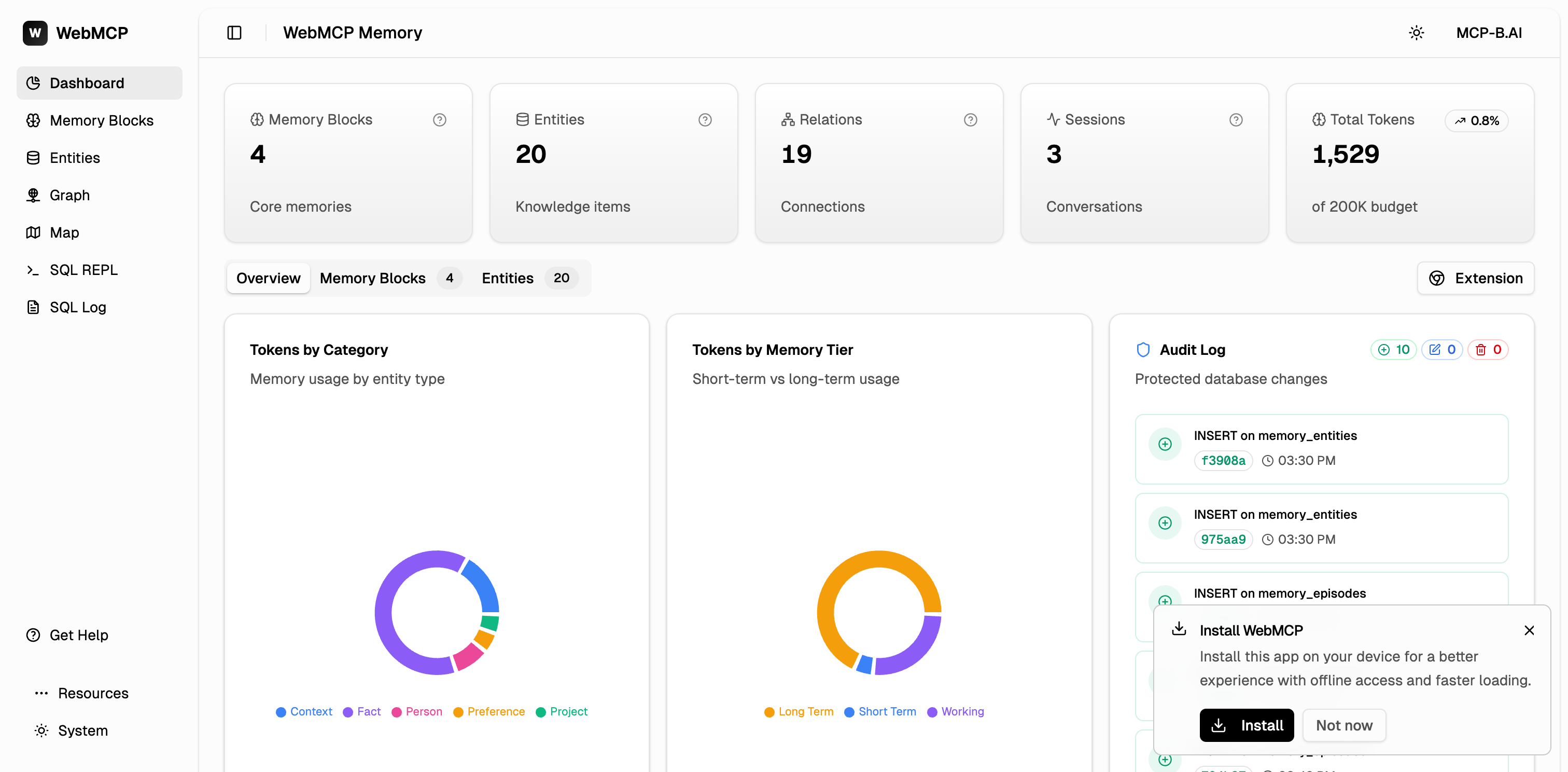
Open webmcp.sh in a separate tab. It has WebMCP tools for navigation, SQL queries, entity management, and more. Ask the agent to list sources again. You will see tools from both tabs. The relay aggregates tools from all connected pages.
webmcp.sh dashboard: a production app with WebMCP tools the relay can discover